

Open the CSS panel
Pages > Scroll down > Custom Code > Custom CSS or
Typing forward slash ( / ), then “CSS”
Copy the Block IDs of the elements you want to animate.
You’ll need to install the Squarespace Block ID Finder Chrome extension
Paste the Block ID into the //FLOATING ANIMATED IMAGES section, separated by commas.
Choose your speed: add your IDs under either the “Quicker float” or “Slower float” section — whichever effect you prefer.

Float animations
Set emphasis font in italics
Step 1: Choose your emphasis font
Go to Site Styles (paint brush icon, top right).
Click Fonts > Assign Styles.
Pick a text style you’re unlikely to use. In this template, I used Content Links Block to assign Instrument Serif as the italic font. (See Fig. 01 below)
Swap it for any font you prefer and make a note of the font family name.
Step 2: Open the CSS panel
Go to Pages > scroll down > Custom Code > Custom CSS, or
Simply type / then search for “CSS.”
Step 3: Update the CSS
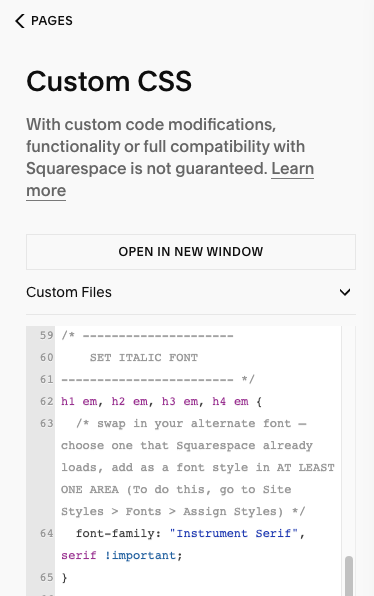
Scroll to the section titled SET ITALIC FONT. (See Fig. 02)
Replace
'Instrument Serif'with the font family you chose in Step 1.Keep the name inside the apostrophes (‘ ’).
Fig. 01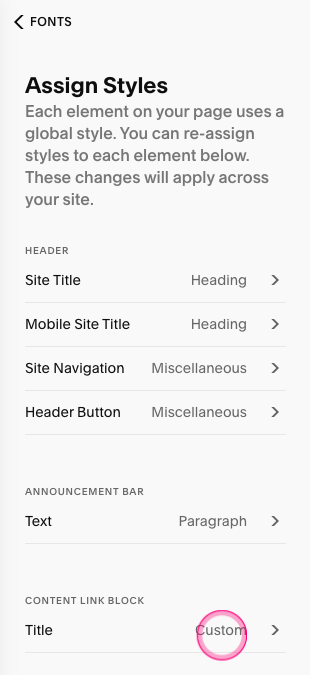
Fig. 02